Collection Page
The collection template displays a filterable, sortable grid of products from a collection.
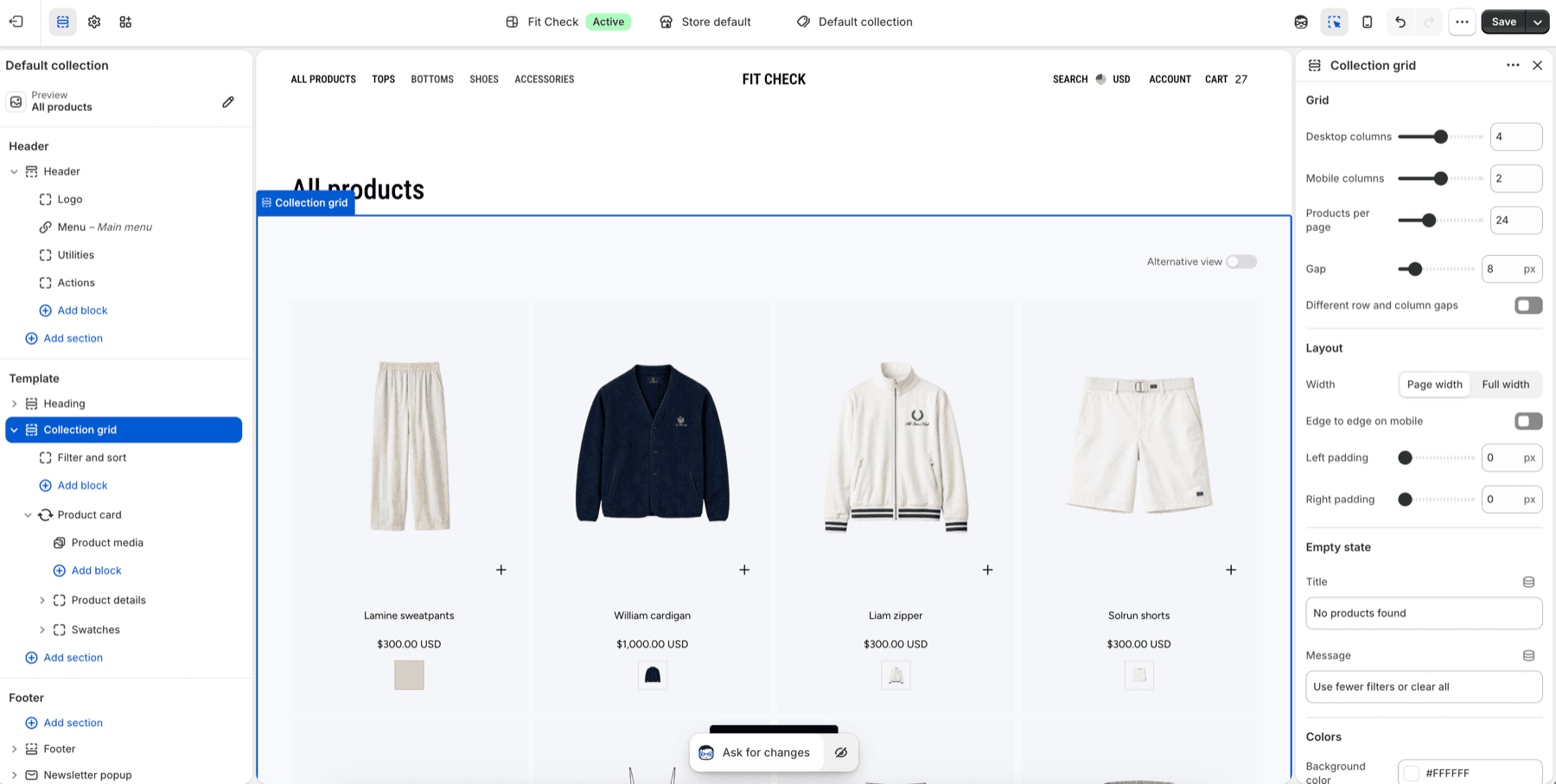
Setup Order
- Open the collection templateIn the theme editor top bar, switch to Collections and select the default collection template or a custom collection template.
- Choose a populated collectionPreview a collection with products so card media, titles, prices, swatches, filters, and pagination can be reviewed together.
- Configure the collection gridSet desktop columns, mobile columns, products per page, gap, page width, mobile edge-to-edge behavior, and section padding.
- Review filters and sortingUse the Filter and sort block with Shopify storefront filters, then test applying, clearing, and combining filters.
- Check product cardsReview product media, details, swatches, quick add, and empty-state copy on desktop and mobile.
Default Layout
The collection page features a product grid with built-in filtering and sorting controls.
Features
Product Grid
- Responsive columns (configurable for desktop and mobile)
- Customizable gap between product cards
- Product cards show image, title, price, badges, and variant swatches
Use Variant Pickers and Swatches for product-card swatch setup, global Swatches behavior, and Product page variant picker checks.
Filtering
Customers can filter products by:
- Color — Swatch-based color filters
- Size — Size option filters
- Price range — Min/max price slider
- Availability — In stock / out of stock
- Product type — Category filters
- Vendor — Brand/vendor filters
Filters use Shopify’s native Storefront Filtering API.
Filter Island
In the Filter and sort block, choose Island for Layout (desktop) to use the floating filter control. In 1.8.0, options wrap within compact columns, wrapped rows keep their dividers aligned, and focused controls stay clear of the title. Filter labels retain the configured text color at full strength; review that color against the drawer background. Show swatch labels also controls the labels beside swatches in the drawer.
Check long filter names, applying and clearing filters, and sorting on desktop and mobile. With a keyboard, choose a sort option, close with Escape, reopen the filter panel, and confirm sorting remains usable.
Sorting
Sort products by:
- Best selling
- Alphabetically (A–Z, Z–A)
- Price (low to high, high to low)
- Date (newest, oldest)
Pagination
Products are paginated with navigation controls at the bottom of the grid.
Section Settings
| Setting | Description |
|---|---|
| Products per page | Number of products shown per page. |
| Desktop columns | Grid columns on desktop. |
| Mobile columns | Grid columns on mobile. |
| Gap | Shared spacing between products. Enable different row and column gaps when the layout needs separate spacing values. |
| Width | Page width or full width. |
| Edge to edge on mobile | Removes side padding on mobile when the grid should use the full viewport width. |
| Left and right padding | Optional side padding for the grid container. |
| Empty state title and message | Text shown when a collection has no products or filtering returns no products. |
| Background color | Optional section background override. |
| Section padding | Use one all-sides value or set top, bottom, left, and right independently. This is separate from the grid container’s optional side padding above. |