Collection List
Display a curated list of collections as a carousel or grid. Use collection lists to help customers browse your store by category from the home page or landing pages.
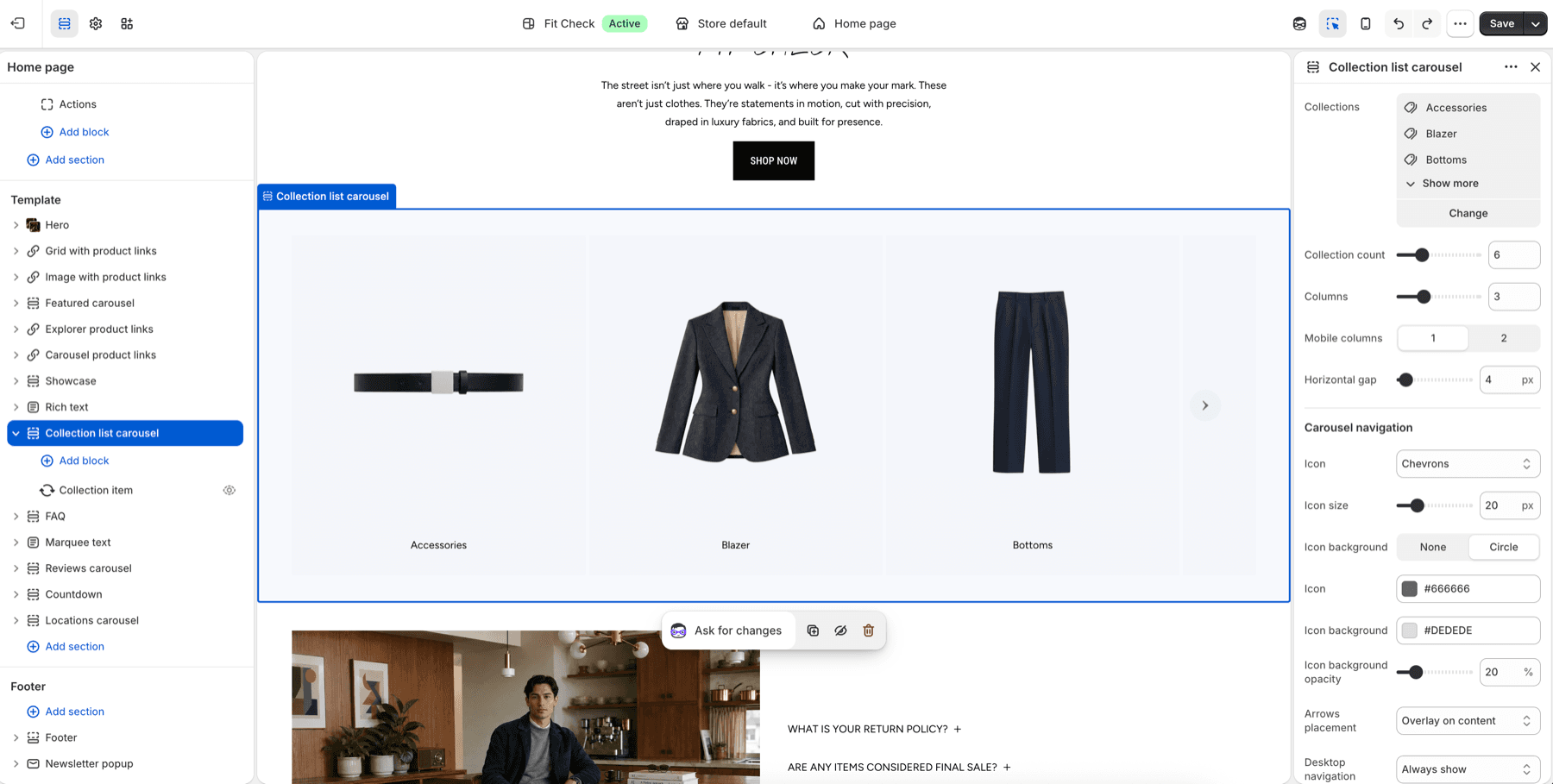
Configure the Section
- In the theme editor, click Add section.
- Select Collection list carousel for a swipeable row or Collection list grid for a fixed grid.
- Choose the collections to display.
Section Settings
| Setting | Description |
|---|---|
| Collections | Select the collections to display. |
| Collection count | Maximum number of collections to show. Range: 1-20. |
| Columns | Number of visible desktop columns or carousel slides. Range: 1-8. |
| Mobile columns | 1 or 2 columns/cards on mobile. |
| Horizontal gap | Spacing between collection cards. Range: 0-100px. |
| Width | Page or Full. Default: Page. |
| Gap | Spacing between manually added blocks and the generated collection list. |
| Background color | Optional section background override. |
| Padding | Set top and bottom padding independently or use one shared value. |
Carousel Navigation
Collection list carousel includes navigation controls:
| Setting | Description |
|---|---|
| Icon | Choose chevrons, a custom icon, or no icon. |
| Icon size | Size of navigation arrows in pixels. |
| Icon background | Use no background or a circular background. |
| Icon color | Color for navigation icons. |
| Icon background color and opacity | Background color and opacity for circular controls. |
| Arrows placement | Place arrows as an overlay on content or below the carousel. |
| Desktop navigation visibility | Always show arrows or show them only on hover. |
| Hide carousel navigation on mobile | Hide arrows when the carousel is gesture-driven on mobile. |
Collection-card image ratio
Choose Image ratio in the collection-card controls to set the card frame. 1.8.0 makes collection images and fallback product images follow that selected ratio consistently, including portrait sources. Fixed Portrait, Square and Landscape frames crop the image to fill the chosen shape; Adapt to image follows the source ratio. These controls do not change the uploaded asset. Preview both portrait and landscape content in carousel and grid layouts on desktop and mobile. See Latest updates for release details.
Tips
- Use collection images or configured collection placeholders so each card feels intentional.
- Keep the collection count close to the number of categories customers need for the page.
- Use carousel mode for compact home-page browsing and grid mode when the collection list is the main page content.