Search page
The Search page section controls the /search template. In Search mode, visitors type into an input field and see results appear as conversation-like cards. It includes an idle state with popular search suggestions and a results state with paginated product, article, page, and collection cards.
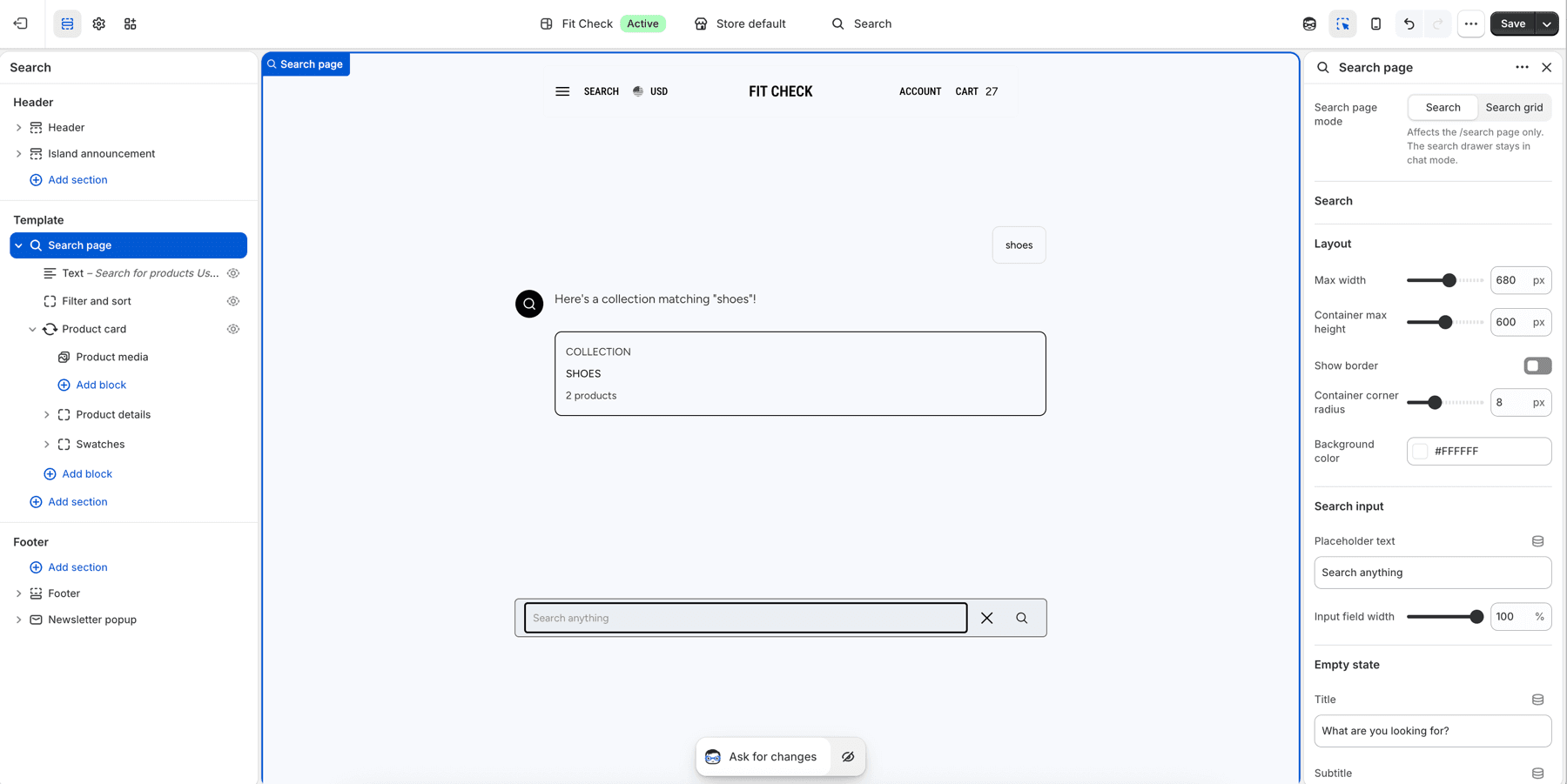
Configure the Section
This section is used on the Search template. It is already included by default - no manual setup needed.
To customize it, navigate to the Search page in the theme editor and click the Search page section.
- Choose search behaviorIn Theme settings > Search, choose whether the header search opens the drawer or routes customers to the search page.
- Choose page modeUse Search for a conversational page or Search grid for a traditional search results page.
- Set result scopeEnable or disable products, articles, pages, and collections based on what your store should return.
- Test the flowSearch from the header drawer, submit a search page query, open a product, use quick add where available, and confirm cart feedback.
Section Settings
Set Search page mode to Search for this experience. Switch to Search grid when the search page should use product-grid results instead.
Layout
| Setting | Description |
|---|---|
| Max width | Maximum width of the chat container. Range: 400–900px. Default: 680px. |
| Container max height | Maximum height of the results area. Range: 400–800px. Default: 600px. |
| Show border | Display a border around the chat container. Default: Off. |
| Container corner radius | Rounded corners on the container. Range: 0–24px. Default: 8px. |
| Background color | Set the section background or leave blank to inherit the global page background. |
Search Input
| Setting | Description |
|---|---|
| Placeholder text | Text shown in the empty input field. Default: “Search anything” |
| Input field width | Width of the input relative to the container. Range: 50–100%. Default: 100%. |
Empty State
| Setting | Description |
|---|---|
| Title | Heading shown before any search. Default: “What are you looking for?” |
| Subtitle | Optional subtitle below the title. |
| Popular searches | Comma-separated list of suggested searches shown as pills. Default: “New arrivals, Sale, Best sellers”. |
| Title style | Typography preset for the title — H1 through H6. Default: H2. |
| Subtitle font size | Size of the subtitle text. Range: 12–24px. Default: 16px. |
Card Styling
| Setting | Description |
|---|---|
| Border radius | Rounded corners on result cards. Range: 0–20px. Default: 8px. |
| Animation style | How results appear — Slide up, Fade, or None. Default: Slide up. |
Chat Bubble
| Setting | Description |
|---|---|
| Query bubble colors | Direct background, text, and border colors for the search query bubble. |
| Use custom colors | Override the scheme with custom background and text colors. Default: Off. |
| Background | Custom bubble background color. Default: #f6f6f6. |
| Text color | Custom bubble text color. Default: #1a1a1a. |
Pills
| Setting | Description |
|---|---|
| Override pill styling | Use custom colors for popular search pills. Default: Off. |
| Background color | Custom pill background. Default: #F5F5F5. |
| Text color | Custom pill text. Default: #000000. |
| Show border | Add a border to pills. Default: Off. |
| Border color | Custom pill border color. Default: #000000. |
Padding
| Setting | Description |
|---|---|
| Padding | Top, bottom, left, and right padding. Range: 0–100px. Default: 36px. |
How It Works
- Idle state: The section shows a centered title, optional subtitle, and popular search pills. The input field sits at the bottom.
- Search performed: After submitting a query, the input sticks and results appear as cards in the chat area with the selected animation.
- Pagination: Results are paginated. The page count is controlled by the global search results per page setting.
Drawer Mode
The same search experience also powers the search drawer (opened from the header search icon). In drawer mode, the input appears at the top and results scroll downward. Drawer-specific settings are available in the global theme settings under Search.
Language and help queries
1.8.0 uses the selected storefront language for theme-generated replies, counts, suggestions, follow-up buttons and supported help queries. These improvements are described in Latest updates; see that page for release details.
Search Chat can recognize supported questions about contact details, shipping, returns, privacy, terms, store information, social links and collections. Replies use the information configured in Shopify and the theme. This includes localized shipping phrases such as frete in Brazilian Portuguese. It is a search and store-information feature; it does not look up a customer’s private order or shipment status.
Product, collection and page titles, policy excerpts and other merchant-authored content depend on translations supplied by Shopify. The chat does not automatically translate arbitrary merchant content or change its reply language based on the typed query. A supported query in another language can still receive a reply in the selected storefront language. Translate customized prompts and popular-search text as saved settings.
See Languages and translations and Search Chat help content.
Reset, suggestions and scrolling
In 1.8.0:
- Reset search cancels pending replies and result loading, clears the conversation and input, closes suggestions, and returns to the welcome state. A cancelled reply does not reappear afterward. Resetting the conversation does not erase recently viewed product history; that list has its own Clear control when shown.
- Predictive suggestions dismissed with Escape, submission or a click outside stay closed until a new input interaction requests suggestions.
- New replies stay visible within the scrollable conversation on desktop. Scrolling back to earlier messages pauses automatic following; submitting another query resumes it without scrolling the whole page to the reply.
- An exact collection-title or collection-handle query uses the same collection response when submitted directly or opened through a search URL. On page load, Search Chat reads the URL query, then removes it from the address bar. It does not save a complete conversation for later reloads.
Check a normal product query, a supported help query, an exact collection query, Reset during a pending reply, and Escape while suggestions are open on desktop and mobile. Review both the search page and header drawer when your store uses both.