Catalog
Display a curated selection of products from any collection in a grid or mobile carousel layout. Use this section on your homepage or landing pages to feature products.
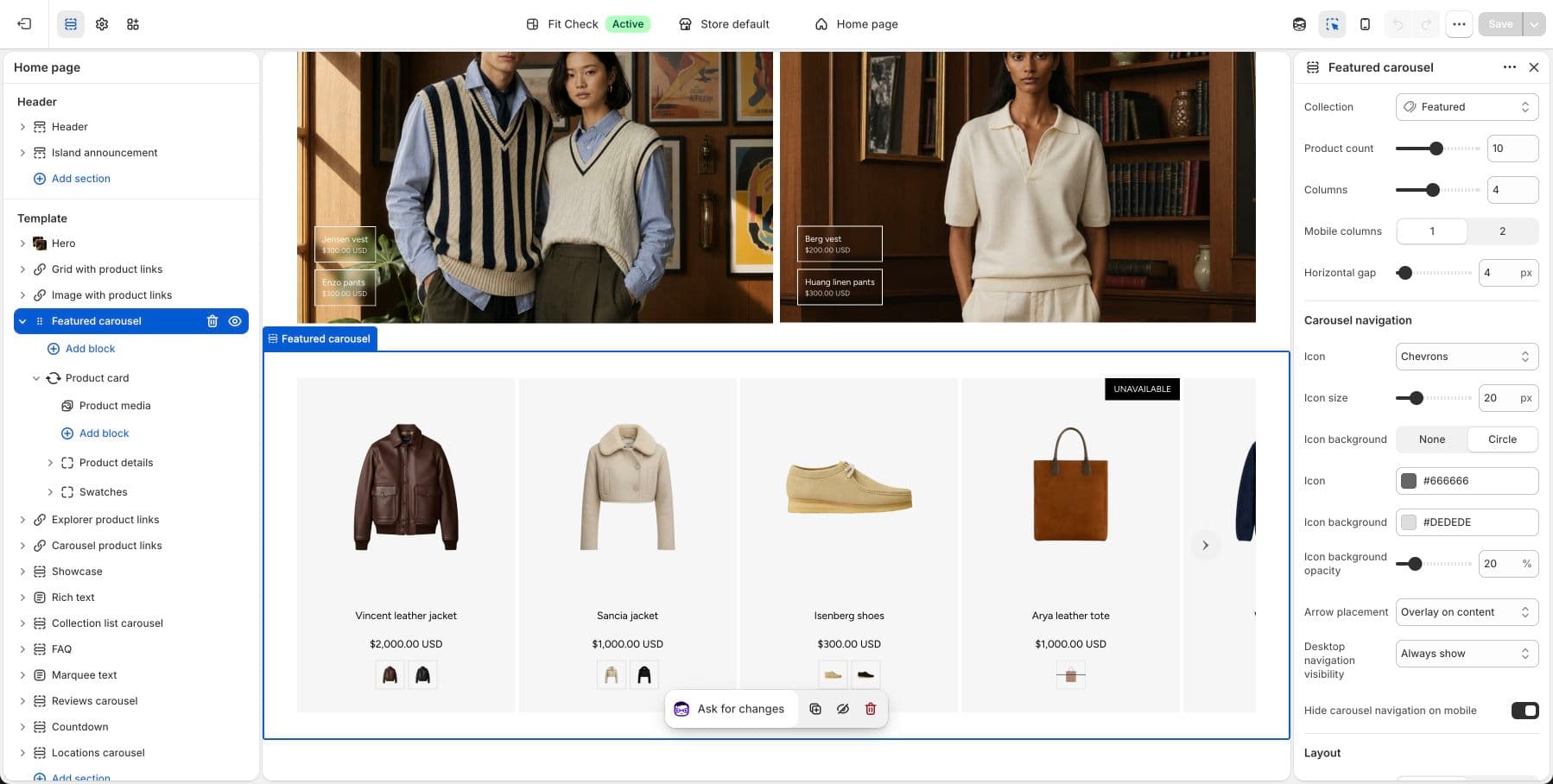
Configure the Section
- In the theme editor, click Add section.
- Select Featured grid for a product grid, or Featured carousel when the products should browse horizontally.
- Choose a collection to pull products from.
Section Settings
| Setting | Description |
|---|---|
| Collection | The collection to display products from. |
| Max products | Maximum number of products to show. Range: 1–20. Default: 4. |
| Desktop columns | Number of columns on desktop. Range: 1–8. Default: 4. |
| Mobile columns | 1 column or 2 columns. Default: 2. |
| Carousel on mobile | Switch to a swipeable carousel on mobile instead of a grid. Default: Off. |
| Mobile card size | Card width in carousel mode. Default: 60%. |
| Column gap | Horizontal spacing between products. Range: 0–100px. Default: 8px. |
| Row gap | Vertical spacing between product rows. Range: 0–100px. Default: 8px. |
| Section width | Page width or Full width. Default: Page width. |
| Background color | Set the section background or leave blank to inherit the global page background. |
| Padding | Use one all-sides value or set top, bottom, left, and right independently. Range: 0–100px. |
Carousel Navigation
When carousel mode is enabled, additional navigation settings appear:
| Setting | Description |
|---|---|
| Arrow style | Chevron, Custom icon, or None. |
| Arrow size | Size of navigation arrows in pixels. |
| Arrow shape | None or Circle background. |
| Arrow placement | Overlay or Bottom. |
| Desktop visibility | Always visible or On hover. |
| Hide on mobile | Hide navigation arrows on mobile devices. |