Complementary products
Display complementary products (cross-sells) in a responsive carousel on product pages. Uses Shopify’s complementary product relationships to suggest items that go well together.
Use this reference when you need section settings for complementary product cross-sells. Use the Shopify Search & Discovery guide when you need the Shopify Admin setup workflow for related products, complementary products, and filters.
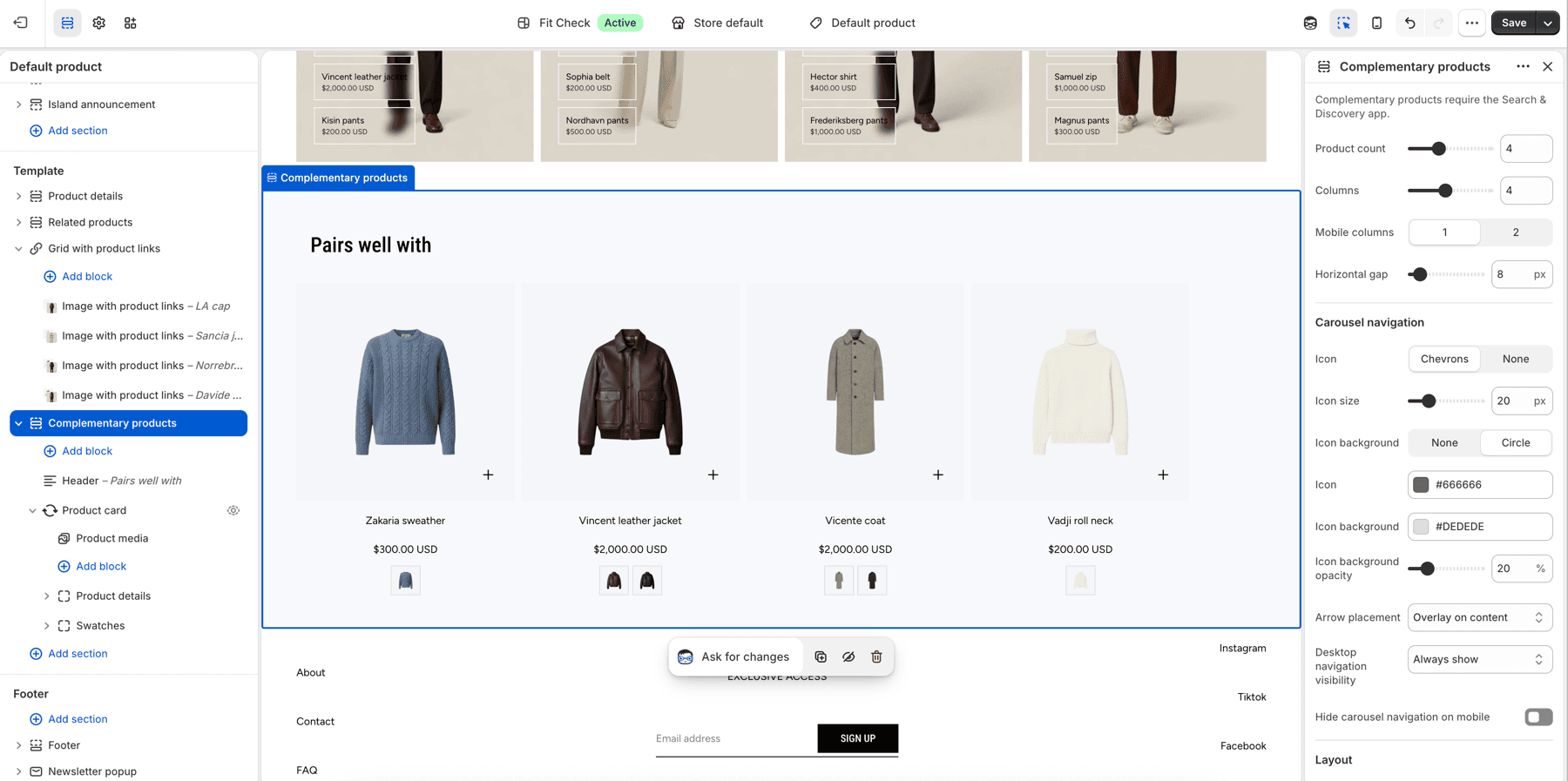
Configure the Section
This section is designed for the Product template. To add it:
- Navigate to a product page in the theme editor.
- Click Add section and select Complementary products.
- Set up complementary product relationships in Shopify admin under Apps > Search & Discovery > Recommendations.
Section Settings
Product Display
| Setting | Description |
|---|---|
| Product count | Maximum number of complementary products to show. Range: 1-10. Default: 4. |
| Columns | Number of columns on desktop. Range: 1–8. Default: 4. |
| Mobile columns | 1 column or 2 columns. Default: 1. |
| Horizontal gap | Spacing between product cards. Range: 0–100px. Default: 8px. |
Carousel Navigation
| Setting | Description |
|---|---|
| Icon | Chevrons or None. Default: Chevrons. |
| Icon size | Arrow icon size. Range: 12–48px. Default: 20px. |
| Icon background | None or Circle background. Default: Circle. |
| Icon color | Arrow color. Default: #666666. |
| Icon background | Arrow background color. Default: #DEDEDE. |
| Icon background opacity | Arrow background transparency. Range: 0–100%. Default: 20%. |
| Arrow placement | Overlay on content or Below content. Default: Overlay on content. |
| Desktop navigation visibility | Always show or Show on hover. Default: Always show. |
| Hide carousel navigation on mobile | Hide navigation arrows on mobile. Default: Off. |
Layout
| Setting | Description |
|---|---|
| Section width | Page width or Full width. Default: Page width. |
| Content gap | Spacing between heading and product grid. Range: 0–100px. Default: 12px. |
| Background color | Set the section background or leave blank to inherit the global page background. |
| Padding | Top and bottom padding with unified or separate controls. Range: 0–100px. Default: 32px. |
Blocks
Add text blocks for section headings, product item blocks for product-card presentation, container blocks for layout composition, and app blocks for third-party integrations.
Product item blocks can include media, title, price, swatches, and quick-add controls depending on the product-card block settings.
Empty complementary products
Complementary products appear only after relationships are configured in Shopify Search & Discovery and Shopify returns products for the current product. If no complementary products are available, the section stays out of the way until products are assigned.
For setup steps in Shopify admin, see the Shopify Search & Discovery guide.
Publish Checklist
- Assign complementary products in Shopify Search & Discovery.
- Preview a product with complementary products assigned.
- Preview a product with none assigned.
- Test product-card swatches and quick add if enabled.
- Review carousel controls on desktop and mobile.