Image with Text
Pair an image with text content in a side-by-side or stacked layout. Use this for brand stories, product features, or promotional content.
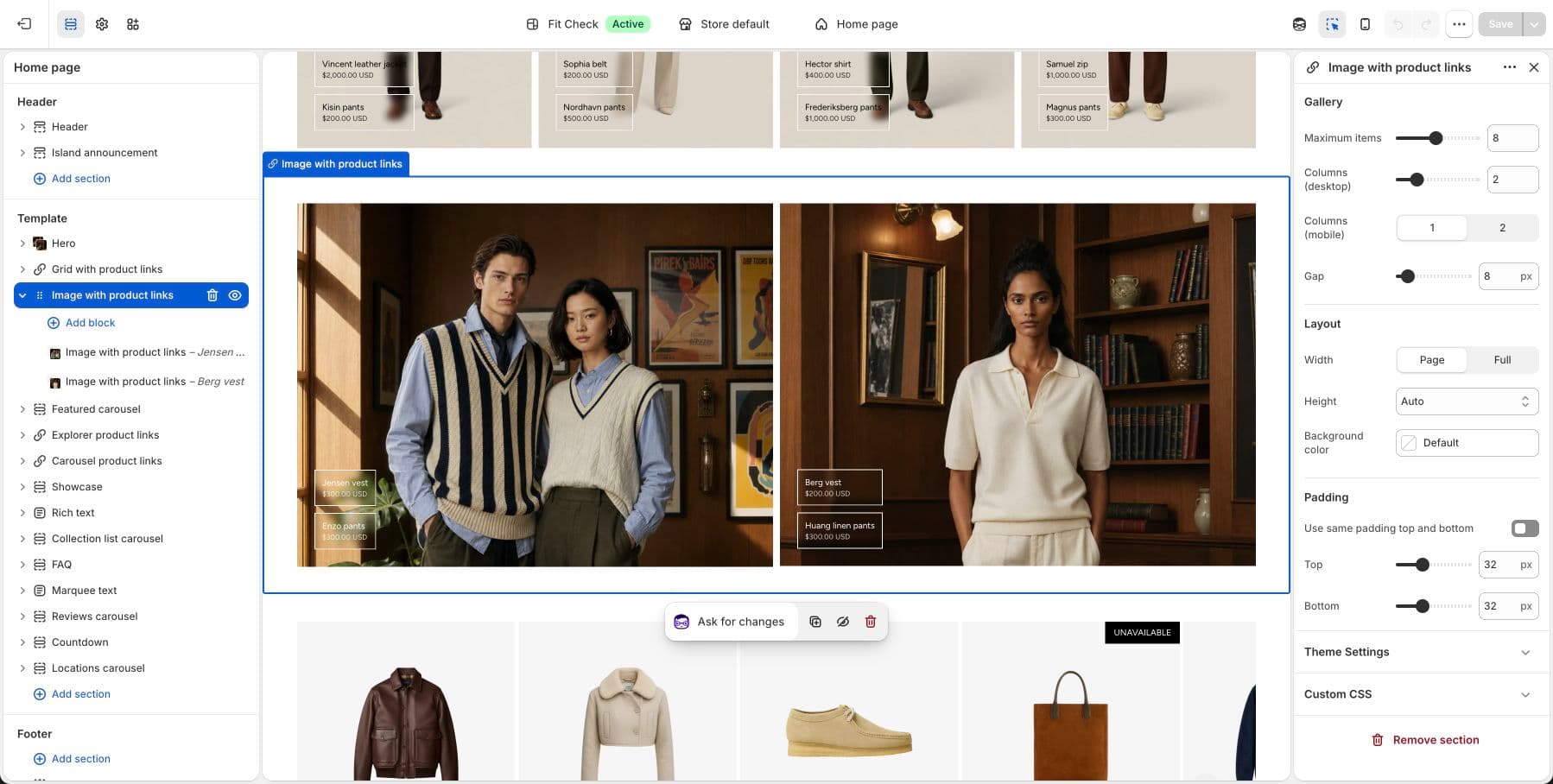
Configure the Section
- In the theme editor, click Add section.
- Select Multicolumn image/text or Showcase and arrange image and text blocks side by side.
How to Build It
Fit Check uses a composable approach — rather than a dedicated “Image with Text” section, you compose this layout using the Showcase or Multicolumn image/text section:
- Add a Showcase section.
- Set Content direction to Row.
- Add an Image block and a Container block with text and button blocks inside.
Layout Options
| Setting | Description |
|---|---|
| Content direction | Row for side-by-side, Column for stacked. |
| Stack on mobile | Automatically stacks the image above text on mobile. Default: On. |
| Horizontal alignment | Start, Center, End, or Space between. |
| Vertical alignment | Start, Center, or End. |
| Content gap | Spacing between the image and text. Range: 0–100px. |
Tips
- Use the Container block to group heading, body text, and button together as one unit next to the image.
- For a reversed layout (text left, image right), reorder the blocks in the sidebar.